Client Config
Client config allows players to change the status overlay color and other toggleable values that the server should not control. This is added in v2.0.0.
Config Options
AutoMove
| Setting | Type | Default | Description |
|---|---|---|---|
autoMoveToInventory | Boolean | true | Automatically moves uncrafted items into the player’s inventory. |
StatusColor
These settings define colors used for slot color overlay depending on the status. As of v2.0.0, status texts is removed from the GUI and replaced with input slot color overlay and status in tooltip when hovering input slot.
INFO
The value is converted to decimal from ARGB hexadecimal.
| Setting | Default Value | Description |
|---|---|---|
noRecipeFound | -40612 | Color used when no valid recipe is found. |
noSuitableOutputSlotColor | -226487 | Color used when the output slot cannot accept the result. |
notEnoughExpColor | -852102 | Color used when the player lacks enough experience. |
notEnoughInputItemColor | -4288 | Color used when required input items are missing. |
notEmptyShulkerColor | -1799425 | Color used when a shulker box contains items and cannot be used. |
restrictedByConfigColor | -11579569 | Color shown when a recipe is disabled by config rules. |
damagedItemColor | -40612 | Color used for damaged items. |
enchantedItemColor | -40612 | Color used for enchanted items. |
lockedItemColor | -40612 | Color used for locked items. |
progressionNotDefinedColor | -40612 | Color used when a progression requirement is not defined. |
Config File
The client config file can be found under config/uncrafteverything-client.toml. Below will include an example of how the config file will look like:
[AutoMove]
	autoMoveToInventory = true

[StatusColor]
	noRecipeFound = -40612
	noSuitableOutputSlotColor = -226487
	notEnoughExpColor = -852102
	notEnoughInputItemColor = -4288
	notEmptyShulkerColor = -1799425
	restrictedByConfigColor = -11579569
	damagedItemColor = -40612
	enchantedItemColor = -40612
	lockedItemColor = -40612
	progressionNotDefinedColor = -40612
INFO
The file name will be config/uncrafteverything_client.toml for Fabric
In-game Config Screen
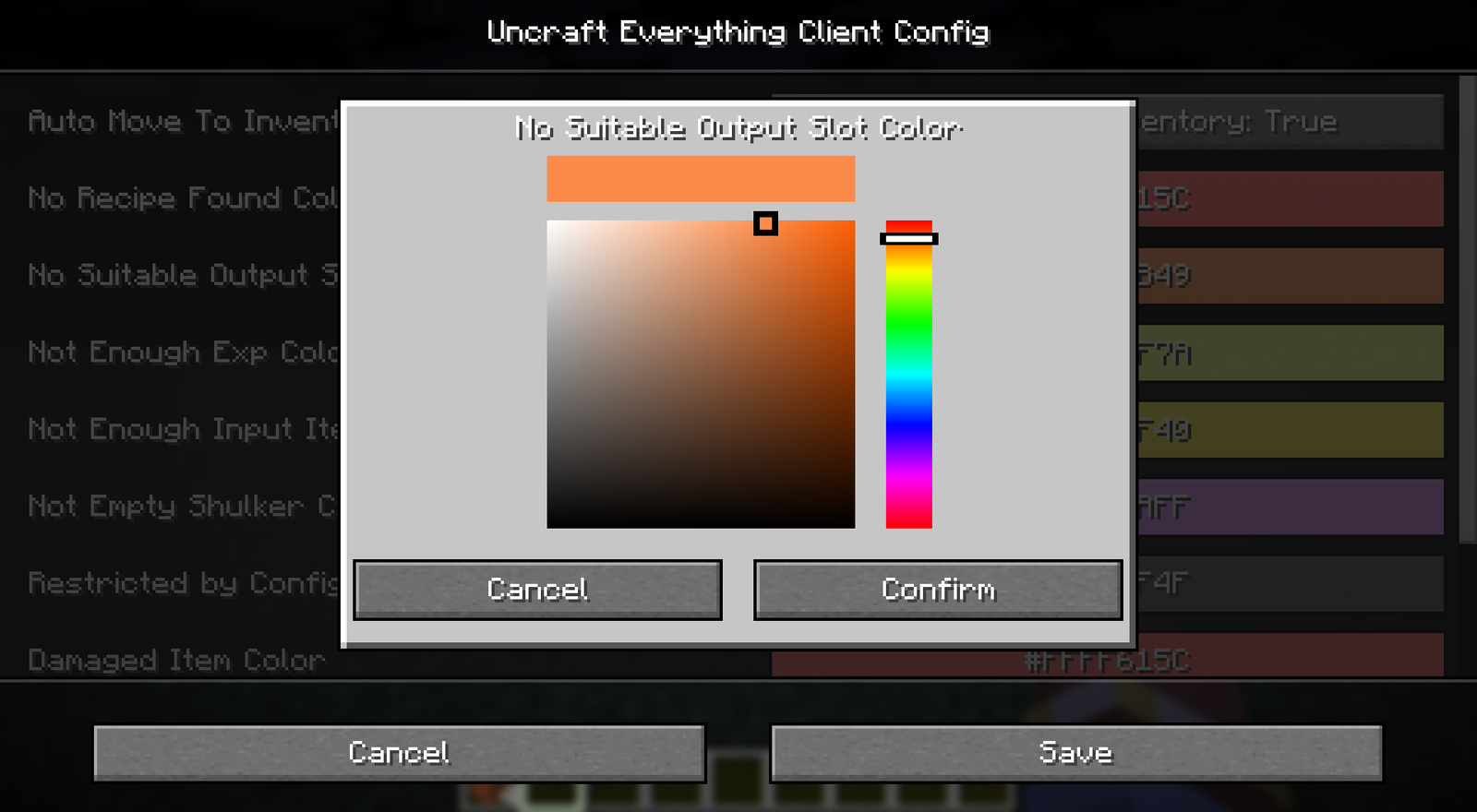
If you are not familiar with config files or hexadecimal, there is an in-game config screen for you to edit the config options with color picker.
The config screen can be accessed by running command /ueconfig client.
Client Config Screen: 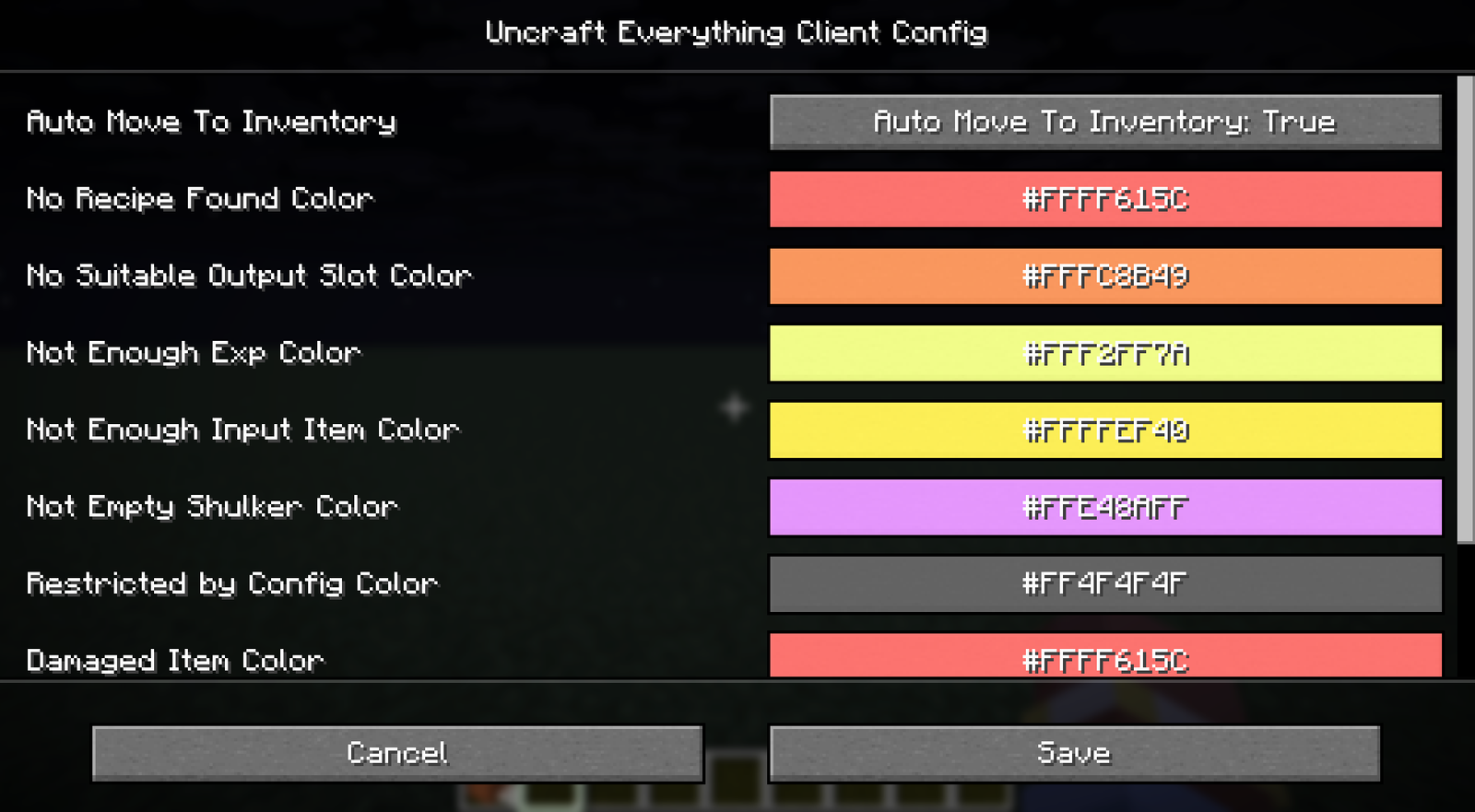
Color Picker: